How to Prevent Client Double Bookings With Calendar Views
Learn how preventing client double bookings starts with one live schedule, useful buffers and calendar views for salons, clinics and beauty professionals.
What if your personal calendar helps you keep track of appointments but doesn’t prevent clashes? When bookings come through different channels or are added manually, two clients can easily be assigned the same time. Preventing client double bookings starts with using personal calendars to view your schedule, rather than treating them as separate places to manage bookings.
A double booking occurs when two appointments are scheduled for the same time with the same professional or resource. Even a short overlap can disrupt the rest of a busy salon or clinic’s day. A shared, up-to-date schedule keeps appointments visible in one place, while suitable buffers allow time to reset, prepare or travel between clients.
This guide explains how to use personal calendars as views, choose practical appointment buffers and reduce manual scheduling with booking software. You’ll also learn why online booking works best when availability is connected to one live schedule, and what to do if a clash occurs.
Key Takeaways
- Use personal calendars to view your schedule, not as separate places to accept and manage appointments.
- Set appointment buffers around the time needed to prepare, reset or travel between clients.
- Account for staff, rooms and equipment when deciding which appointments can run at the same time.
- Keep booking channels connected to one live schedule to reduce manual entry and scheduling conflicts.
Using personal calendars as views rather than booking calendars
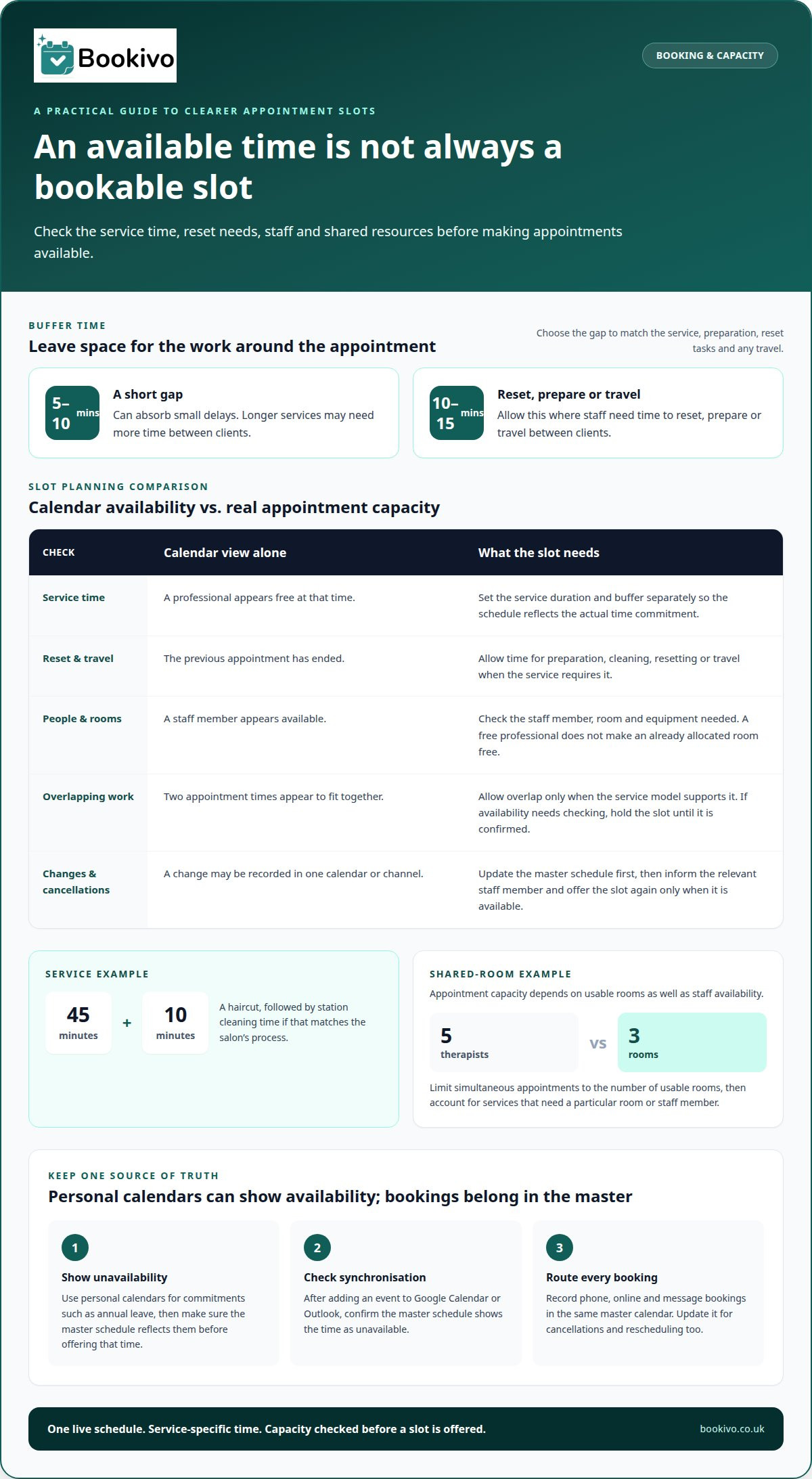
Use one master calendar for appointments, and personal calendars to view availability. This keeps bookings and changes in one place.
Keep personal calendars as availability views
Use each staff member’s personal calendar to show when they’re unavailable, not to accept client bookings. For example, block out annual leave in a personal calendar, then make sure the master calendar reflects it before offering that time. Treat the master as the source of truth. Otherwise, staff may see different availability and book the same slot.
Synchronise external calendar availability
Check how external calendar synchronisation handles new events and changes. Availability may be out of date if a personal calendar update doesn’t reach the booking calendar promptly. For example, after adding a training session to Google Calendar or Outlook, confirm that the master schedule shows the time as unavailable before offering it to a client. Don’t assume that connecting calendars means every change appears automatically.
Route booking channels into one master calendar
Enter appointments from every source, including phone calls, online bookings and messages, into the same master calendar. For a phone booking, record the service, staff member and time before confirming it. This prevents an online customer from choosing a slot that’s already taken. Follow the same process for cancellations: update the master calendar before offering the slot again.
Manage shared calendars and changes
Give staff clear responsibility for updating shared calendars, and make appointment changes in the master first. If a client needs to reschedule, change the booking there, then inform the relevant staff member. Send a confirmation with the date, time, service and assigned professional, followed by an updated confirmation after any change. For a shared resource, such as a treatment room, compare Google Calendar and Outlook views with the master to spot conflicting reservations.
What’s the best buffer time between appointments?
Choose a buffer that accounts for the service, reset tasks and any travel between clients. A clear booking policy should also explain when a slot counts as booked and how staff handle changes.
- Set a buffer that reflects the work. Allow 10-15 minutes where staff need time to reset, prepare or travel between clients. A five-to-ten-minute gap can absorb small delays, but longer services may need more. For example, after a 45-minute haircut, allow 10 minutes for station cleaning if that matches the salon’s process. Set each service duration and buffer separately so the calendar reflects the actual time commitment.
- Set capacity limits for people and rooms. Count the staff and resources needed before opening a slot. If five therapists share three rooms, the booking system shouldn’t treat all five as available at once. Limit simultaneous appointments to the number of usable rooms, then account for services that need a particular room or staff member. This keeps bookings within actual capacity.
- Allow overlapping appointments only when the service model supports them. A stylist can’t usually take a cut and colour appointment at the same time if both need their full attention. Overlapping appointments may suit a service where a professional can safely work with another client during a waiting period. When a request comes in, block the slot until availability is confirmed rather than promising it while checking the schedule. Reminders confirm details, but don’t replace capacity limits.
- Make the booking policy clear. State how clients book, cancel and reschedule, and when an appointment is confirmed. Apply the same rules to phone and online requests. A branded booking view can present available slots for clients to choose from, while staff still need to account for service time, buffers and shared resources.
What does double booking actually mean?
A salon double booking occurs when two appointments are assigned to the same time slot for one professional or resource. Even if the clash is accidental, clients may face delays, a changed appointment or an unexpected wait.
- Trace where the conflict began. Compare appointment details across the calendar, booking messages and staff notes. A phone booking recorded later can overlap with a slot already taken online. A time entered incorrectly, or availability left open after a staff member’s plans changed, can cause the same problem. Finding the original source helps you fix the process, not just the individual appointment.
- Look for practices that allow conflicts to recur. Manually copying appointments between calendars creates more opportunities for mistakes. So does accepting a booking before checking the assigned professional, room or equipment. Review each service’s booking settings, including its duration and resource requirements. If a shared treatment room is already allocated, another professional’s availability doesn’t make that room free.
- Check whether the booking process reflects the real schedule. Conflicts can arise when staff use separate calendars, availability is out of date, or a cancellation isn’t recorded everywhere. For example, a client may select a slot online after a phone booking was added only to a paper diary. Repeating that workaround undermines online booking and leaves the same gaps in the process.
- Respond promptly when a client is double-booked. Contact the affected client, apologise and offer another appointment time. If appropriate and possible, offer compensation. Then update the schedule and inform the staff member involved, so nobody continues working from conflicting appointment details. Record what caused the clash, such as a missed cancellation or an unrecorded phone request, and address the cause before handling similar bookings.
Automating bookings with scheduling software
Scheduling software can reduce manual entry, but online booking alone won’t prevent conflicts if channels don’t share up-to-date availability. Use these steps to assess how well your process handles bookings.
- Bring booking channels into one live schedule. Choose a setup where bookings through a branded online booking page and staff-entered appointments update the same availability. If a client books by phone, record the appointment before offering that slot online. Otherwise, one channel may show a gap that another has already filled. Keep cancellations and rescheduled appointments in the same schedule, so the slot’s status stays clear.
- Set up staff, services and resources accurately. Add each professional’s working availability and assign services to the people and rooms that can provide them. For example, a colour appointment may require a particular stylist and chair. If the booking system treats every team member and resource as interchangeable, it may offer a slot that looks free but can’t accommodate the service.
- Test the last available slot. Open two separate customer sessions and try to book the same remaining appointment. Check whether the second session is prevented from confirming the slot after the first booking. Repeat the test after changing availability or cancelling an appointment. This practical check can reveal gaps between online booking, staff calendars and resource settings before they cause a real conflict.
- Keep confirmations and reminders clear. Send clients the service, date and time, and update them promptly if they need to reschedule. Reminders help clients keep track of bookings, while a clear cancellation policy explains how changes are handled. Neither replaces accurate availability: overbooking can still happen if staff accept requests outside the schedule or use a separate manual record.
Bookivo
Bookivo helps salons and aesthetics clinics manage appointments through an online booking system and branded booking website. If you work independently, its booking tools for solo beauty professionals offer a relevant starting point for considering how to organise bookings around your services.
Explore a branded booking preview to see how the booking experience could reflect your business, or try the platform to see whether it suits your setup.
Make your booking process ready for change
A dependable booking process should adapt as your business changes. When you add a service, adjust staff availability or introduce a room, review how the change affects appointment capacity. Treat preventing client double bookings as an ongoing part of organising your schedule, not a one-off task. Reviewing the process after operational changes can help catch mismatches before they affect clients.
Bookivo’s Beauty & Salon Booking Software and Aesthetics Clinic Booking Software help businesses manage appointments online. To take the next step, identify where your current booking process needs a more consistent home, then consider how a digital system could support it.
With a clear process in place, you can focus more confidently on giving clients a well-organised experience.
Frequently Asked Questions
How do I stop clients from booking at the same time?
Make it clear that a requested time isn’t final until the booking is recorded and confirmed. Don’t promise a slot on the phone while another team member is still checking it. For example, ask the caller to wait briefly while you complete the entry, then confirm the service and time together. This gives the client one clear answer, without competing assumptions.
How do I politely say no to a client trying to double book me?
Be warm but firm, and make clear which appointment you can honour. You could say, “I can’t take both appointments at that time. Which one would you like to keep?” If the client means two services in one visit, explain whether you can accommodate the combination and offer a suitable alternative. Clear wording avoids making either booking sound confirmed.
What are the most effective ways to prevent client double bookings?
Look for pressure points in the working day, such as staff handovers, lunch breaks or busy periods when messages arrive together. Assign someone to enter incoming requests at these times, and review bookings awaiting confirmation before staff finish. A short written procedure helps new team members follow the same process instead of relying on informal habits that vary between shifts.
How can online booking software prevent overlapping appointments?
Online booking can reduce the need to copy details from messages into a separate diary, removing one opportunity for an entry error. A useful confirmation makes the agreed appointment easy for both the client and business to identify. If a client queries a booking, compare their confirmation with the business schedule before making a change, so a correction doesn’t accidentally create a second appointment.
How do calendar integrations and real-time availability updates prevent double bookings?
Integrations work best when each appointment has a clear source of truth. Avoid importing an appointment into a connected calendar and then treating that copy as a new booking to send back, as this can create duplicate entries. Decide which system creates appointments and which calendars display them, then check that a test event appears once in each intended view.
What are the risks and costs of double-booking clients?
To understand the business impact, record the time spent resolving each clash, any appointment income lost and any compensation offered. These costs vary by service and outcome, so use actual incidents rather than an assumed average. Also note whether the client rebooks. Reviewing these details can show whether a process change is reducing disruption, beyond simply counting calendar errors.